By SellerSprite Customer Success Team | We support a large global seller base using SellerSprite, trusted by 1,500,000+ sellers worldwide and backed by ongoing marketplace data analysis. Learn more about SellerSprite
Key Takeaways
- If you are creating your first listing, start with Catalog > Add Products and choose the correct product match or create from scratch.
- Category choice impacts browse visibility, required fields, and whether you face a gated category review.
- Fill Vital Info carefully: brand, product type, variation theme, compliance, and product ID rules can block your listing later.
- Use a simple tool loop: discover keywords, draft copy, then verify indexing after publishing.
- Improve AI visibility by structuring content with clear fields, honest claims, and high-quality images that match search intent.
Creating a new Amazon product listing is not hard, but the small choices in Seller Central can quietly decide whether your ASIN gets indexed, converts, or gets stuck in edits. This guide shows you exactly how to create an Amazon listing in Seller Central, including how to add a new product, pick the right category, build variations, upload compliant images, and publish your first listing with fewer mistakes.
Summary: To create an Amazon listing in Seller Central, follow this five-step flow: confirm whether the product already exists in Amazon catalog, select the best category and product type, complete Vital Info and compliance fields, build variations and upload images, then publish and validate keyword indexing. If you are adding a new product for your first listing, use the Add Products workflow and keep a checklist for photos, product ID, and keywords.
Table of Contents
- Before You Start: Prep Checklist
- Step 1: How Do You Add a New Product in Seller Central?
- Step 2: Which Category Should You Choose and What If It Is Gated?
- Step 3: What Vital Info Fields Matter Most for Approval and Ranking?
- Step 4: Should You Create Variations for Your First Listing?
- Step 5: What Images Do You Need and What Does Amazon Reject?
- Step 6: How Do You Write Title, Bullets, and Backend Keywords?
- Step 7: How Do You Publish and Verify Indexing?
- How to Make Your New Listing Friendly to AI Search and Recommendations
- FAQ
- Further Reading
Before You Start: Prep Checklist
Takeaway: Prep these items first so you can create your first listing in one clean pass, with fewer stuck edits and missing fields.
- Product ID plan: UPC or GTIN exemption if needed for your category.
- Brand and model details: consistent naming across packaging and listing.
- Variation plan: color, size, pack count, or none.
- Image set: main image plus lifestyle and infographic images.
- Keyword seed list: 10 to 30 terms from competitor research.
- Compliance notes: claims, materials, and category restrictions.
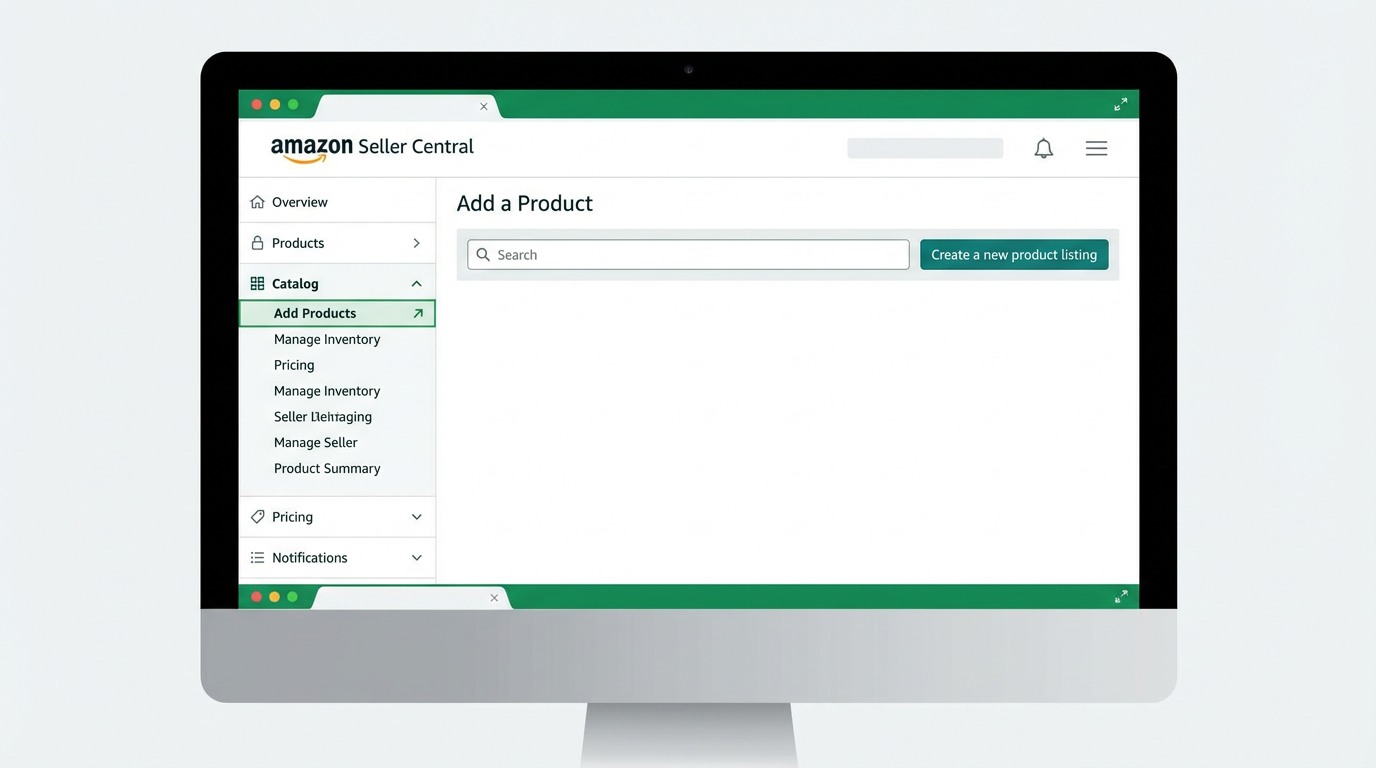
Step 1: How Do You Add a New Product in Seller Central?
Answer: Use Catalog > Add Products to search the Amazon catalog first. If the exact product already exists, match the ASIN and add your offer. If it does not exist, choose Create a new listing and enter your product details from scratch. This approach reduces duplicate listings and lowers the chance of catalog conflicts later.
Common mistake: Listing the same product twice by skipping the catalog search. This can trigger suppressed detail pages or mismatched variations.
- Go to Catalog and click Add Products.
- Search by product name, UPC, or brand model.
- If a match exists, click Sell this product and add your offer details.
- If no match exists, click Create a new listing and continue to category selection.
Tool Shortcut: Validate Demand Before You Create a New Listing
Use SellerSprite to sanity check category demand and competing ASIN sales before you commit to a brand-new catalog entry.
Mini case: A home and kitchen seller matched an existing ASIN instead of creating a duplicate listing. Result: the offer went live the same day, avoiding a 9-day suppression cycle caused by conflicting attributes on a duplicate detail page.
Step 2: Which Category Should You Choose and What If It Is Gated?
Answer: Choose the category that best matches how shoppers search and how Amazon defines required attributes. The right category improves browse placement and ensures the correct compliance fields appear. If the category is gated, you may need approval before your listing is fully searchable, so plan the approval step early and do not force an incorrect category just to publish faster.
Pro tip: If two categories seem possible, select the one whose product type and variation themes match your SKU roadmap for the next 6 months.
- Gated category check: if you see an approval prompt, pause and gather required docs before you continue.
- Attribute match: confirm your category supports your key differentiator, such as size or pack count variations.
- Risk note: Changing categories later can reset attributes and break variations.
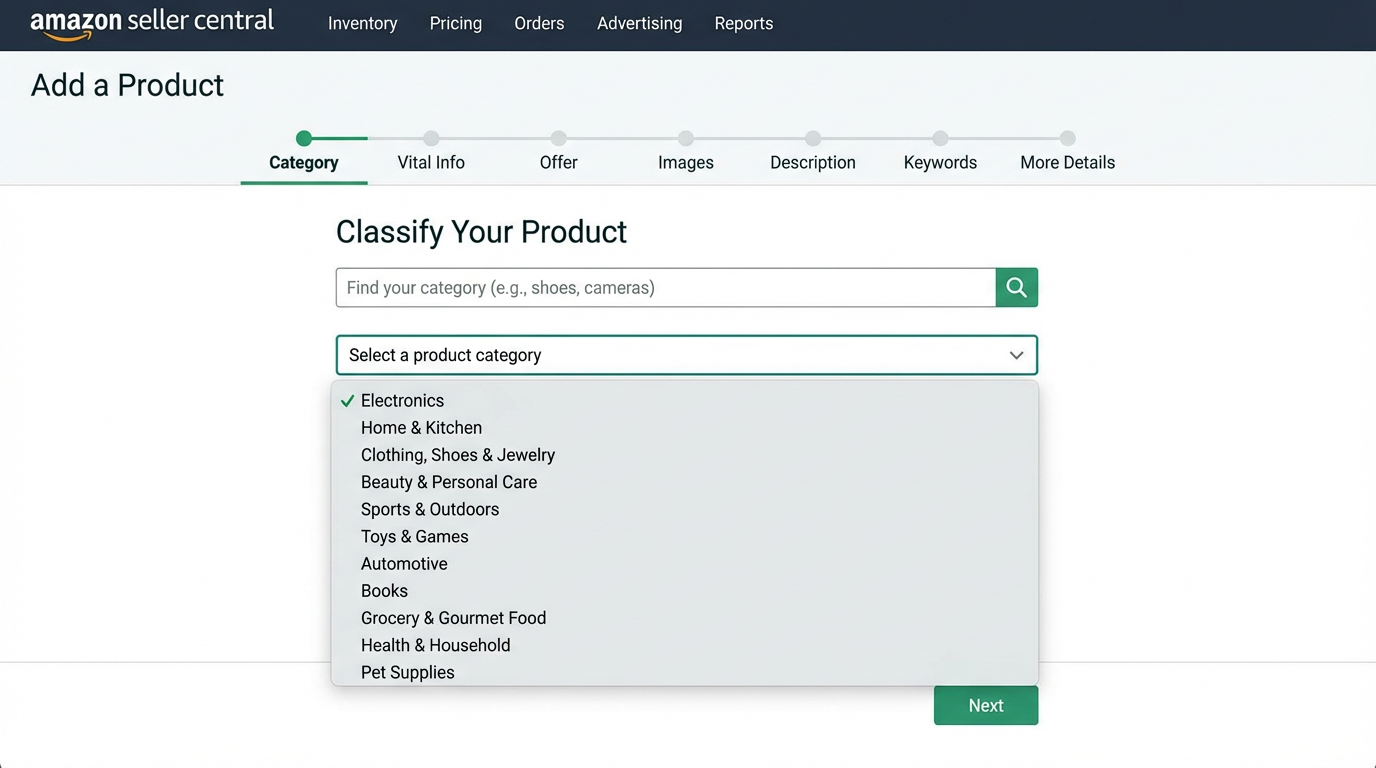
Real scenario: A beauty seller selected an incorrect category to bypass approval. The listing was published, but impressions stayed low because it did not surface in the right browse nodes. After re-creating the listing in the correct category and completing approval, the seller saw a meaningful lift in browse traffic over the following 14 days.
Step 3: What Vital Info Fields Matter Most for Approval and Ranking?
Answer: Vital Info is where many first listings fail. Focus on the fields that control indexing and catalog quality: product type, brand name, item name, key attributes, compliance details, and product ID rules. If these fields are inconsistent, Amazon may suppress the detail page or block variations, even if your title and images are strong.
Warning: Do not try to solve a missing required field by stuffing keywords into attributes. Amazon treats attributes as structured data, not marketing copy.
Tool Shortcut: Draft Listing Copy With Keyword Coverage Checks
Build your title, bullets, and description with a keyword list, then use Listing Builder to check character limits and coverage before you paste into Seller Central.
Step 4: Should You Create Variations for Your First Listing?
Answer: Create variations only when your products are truly the same item with one controlled difference, such as color or size. Variations can increase conversion by keeping reviews and choices on one detail page, but incorrect parent-child structure can suppress offers or split traffic. If you are unsure, launch one child SKU first, then expand variations once you confirm stable sales and returns.
Common mistake: Combining unrelated items into one variation family. Amazon may break the relationship or block updates.
- Good variation fit: same product, same brand, same use, one clear theme difference.
- Bad variation fit: different functions, different materials, different target use cases.
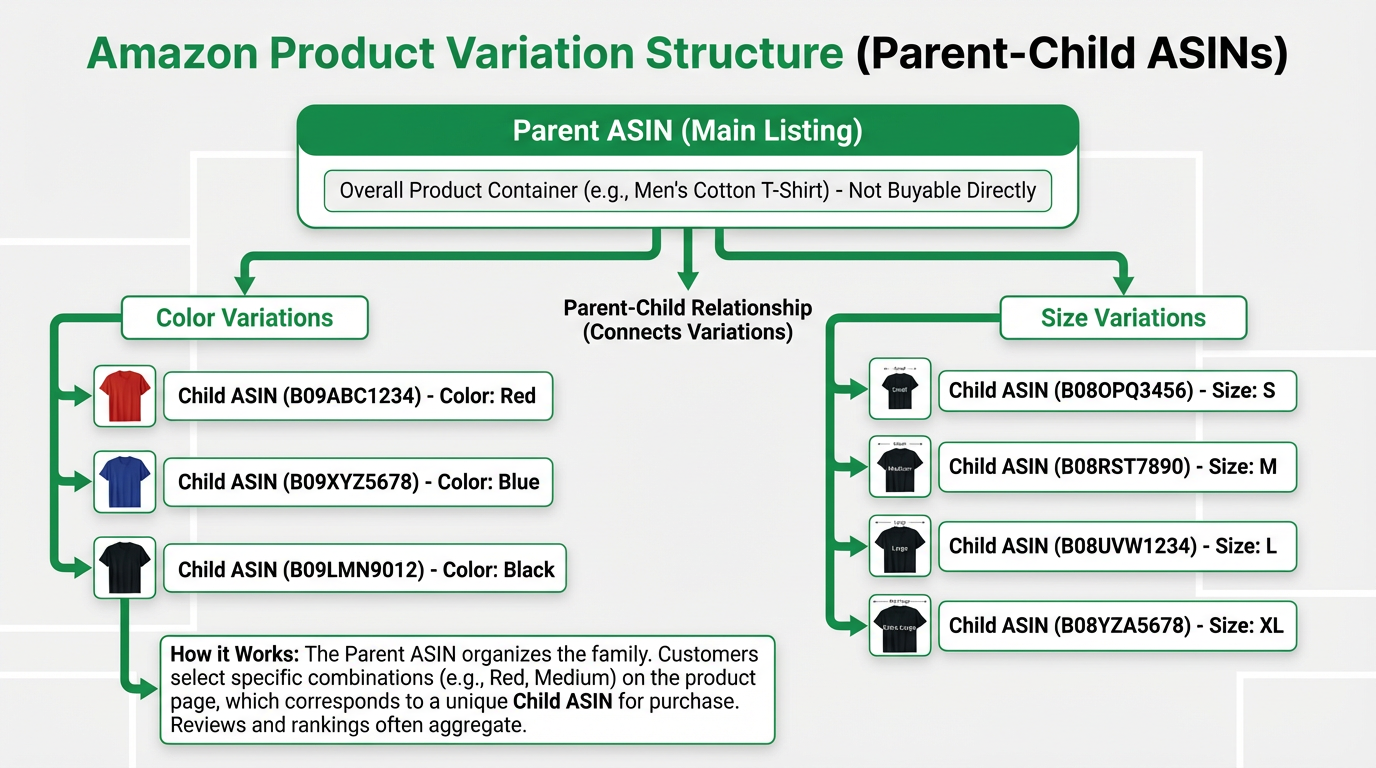
Mini case: A pet supplies seller launched one size first, then added a second size as a child variation after 21 days. Result: fewer catalog edits, cleaner reviews, and a smoother PPC learning phase because traffic was concentrated on one family.
Step 5: What Images Do You Need and What Does Amazon Reject?
Answer: Your images control click-through rate and conversion, and they must follow category rules. Start with a compelling main image, then add lifestyle, detail close-ups, and one infographic that explains the top benefit in plain language. If your main image breaks the rules, your listing can be suppressed or lose search placements.
Pro tip: Make sure the first image answers: what it is, what size it is, and why it is better, without needing the buyer to zoom.
A simple image set for a first listing
- Main image: product only, clean background, fills the frame.
- Lifestyle image: product in use to match shopper intent.
- Detail image: materials, texture, key mechanism.
- Infographic: dimensions, compatibility, and what is included.
- Comparison image: your version vs common alternatives, factual and non-misleading.
Tool Shortcut: Align Images With Keyword Intent
Use Reverse ASIN and Keyword Miner to see how top listings frame the problem and which benefits buyers expect to see. Then mirror that intent in your lifestyle and infographic images.
Step 6: How Do You Write Title, Bullets, and Backend Keywords?
Answer: Write your listing for clarity first, then optimize for keywords. Put the main keyword and core differentiator in the title, explain benefits in bullets with proof points, and use backend keywords for close variants you did not include naturally. Avoid repeating the same term across every field. Amazon wants clean, accurate text that matches what the product actually is.
One-sentence checklist: Title identifies the product, bullets sell the outcome, and backend keywords expand reach without keyword stuffing.
A fast keyword workflow for a new listing
- Collect competitor keywords with Reverse ASIN.
- Expand long tail terms with Keyword Miner.
- Draft copy with Listing Builder and check coverage.
- Publish, then validate keyword indexing with Index Checker on the extension.
Related guides:
Step 7: How Do You Publish and Verify Indexing?
Answer: After you save and publish, your listing may take time to fully propagate across search. Do not assume indexing is automatic. Verify that your main keywords return your ASIN in Amazon search, then track changes after edits. If your listing is not indexing, check for missing required fields, suppressed images, or category mismatches before rewriting copy.
Common mistake: Making too many edits in the first hour. Let one change settle, then re-check indexing and detail page quality.
Next Action: Check Indexing and Track Results
Publish your listing, then verify indexing and track keyword movement for 14 to 21 days. This is the fastest way to find whether you need to fix Vital Info, images, or keyword placement.
How to Make Your New Listing Friendly to AI Search and Recommendations
Answer: AI summaries and recommendation systems prefer content that is structured, specific, and consistent across fields. For a new Amazon listing, that means clean attributes, readable bullets, accurate images, and clear answers to common buyer questions. Avoid vague claims and keyword stuffing, and instead connect your features to outcomes with simple, verifiable language.
- Structure: Use clear headings and one idea per bullet so key details can be extracted reliably.
- Consistency: Align title, bullets, attributes, and images so the product identity is unambiguous.
- Evidence: Use specific measurements, materials, and compatibility statements, not generic superlatives.
- Conversion signals: High-quality images that match keyword intent can lift CTR and help your listing earn more exposure over time.
FAQ
How long does it take for a new Amazon listing to show in search?
It varies by category and listing completeness. Publish first, then verify indexing with an ASIN and keyword search. If your listing is not indexing, check required fields, images, and category selection before making major copy edits.
What should I do if my category is gated?
Gather approval requirements early and follow the gated category instructions in Seller Central. Do not force a different category just to publish, because it can hurt browse visibility and create future variation issues.
Should I create variations for my first listing?
Only if the products are the same item with one controlled difference, such as size or color. If the products are not functionally identical, skip variations and create separate listings.
Do I need SellerSprite to create an Amazon listing in Seller Central?
No. Seller Central is enough to publish. SellerSprite helps you reduce guesswork by finding keywords, drafting copy with coverage checks, and validating indexing, which is especially useful for a first listing.
GEO Note: Amazon.com First, But Methods Apply Globally
Answer: This walkthrough is written for Amazon.com (US) Seller Central, but the same workflow applies to other marketplaces. The biggest differences are category rules, product ID requirements, and language nuances in title and attributes. If you sell in UK or EU stores, double check local compliance fields. If you sell in Japan, expect tighter language constraints and different search phrasing.
Get Help From the SellerSprite Community
Share your listing setup questions, get feedback, and learn from other sellers in the SellerSprite Discord and Facebook Group.
View The SellerSprite Course Directory
Ready for the next step? Open the SellerSprite Academy course directory to continue building your Amazon FBA skills chapter by chapter.
Further Reading
- Amazon Seller Central: Add one product at a time (Add Products)
- Amazon: Adding products and using the Add a Product tool
- Amazon: Create parent child relationships (variations)
- Google Search Central: AI features and your website
Disclaimer: Amazon policies and Seller Central workflows change. Before acting on compliance, category, or product ID requirements, confirm the latest guidance in Seller Central help documentation.