Child accounts help you collaborate with teammates while keeping plan usage and access under your main account. Follow the steps below to create and manage child accounts.
1) Open the Child Accounts Module
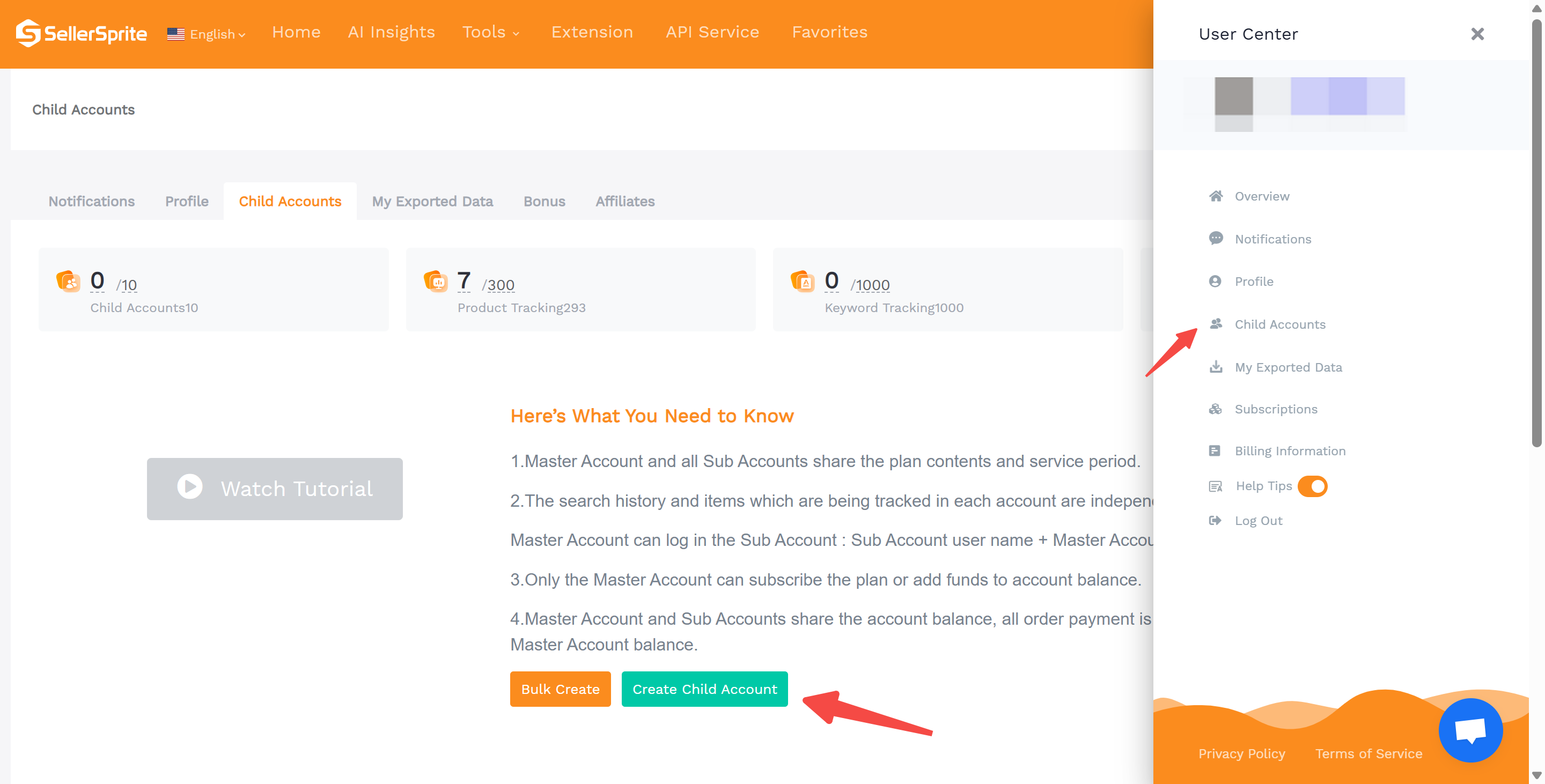
Log in to your main SellerSprite account, then go to Profile and open the Child Accounts module. Click Create Child Account.
2) Fill in Child Account Details
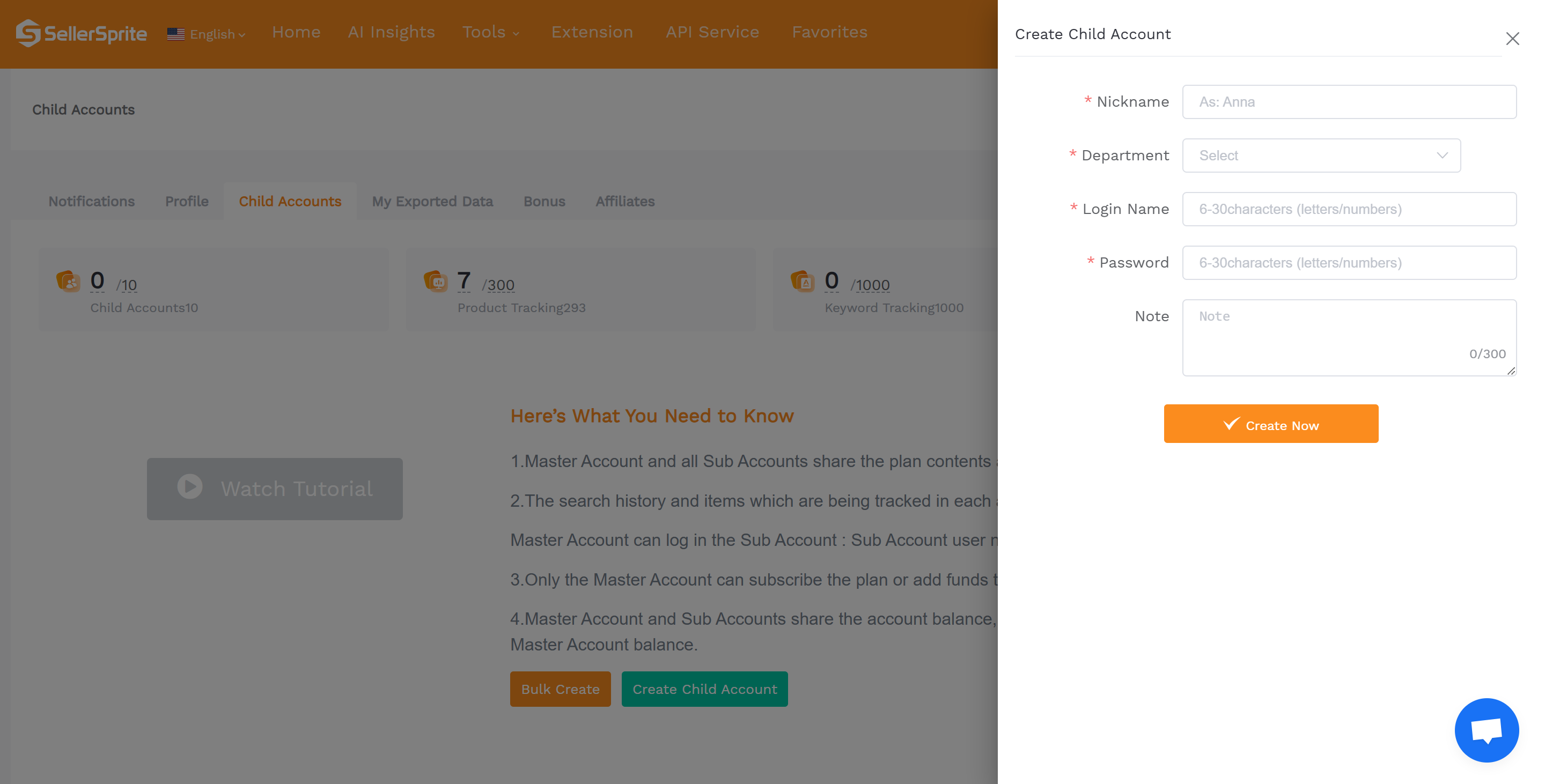
Enter the required information: Nickname, Department, Login Name, and Password.
- Login Name: 6–30 letters or numbers
- Password: 6–30 letters or numbers
3) Share Login Details With Your Teammate
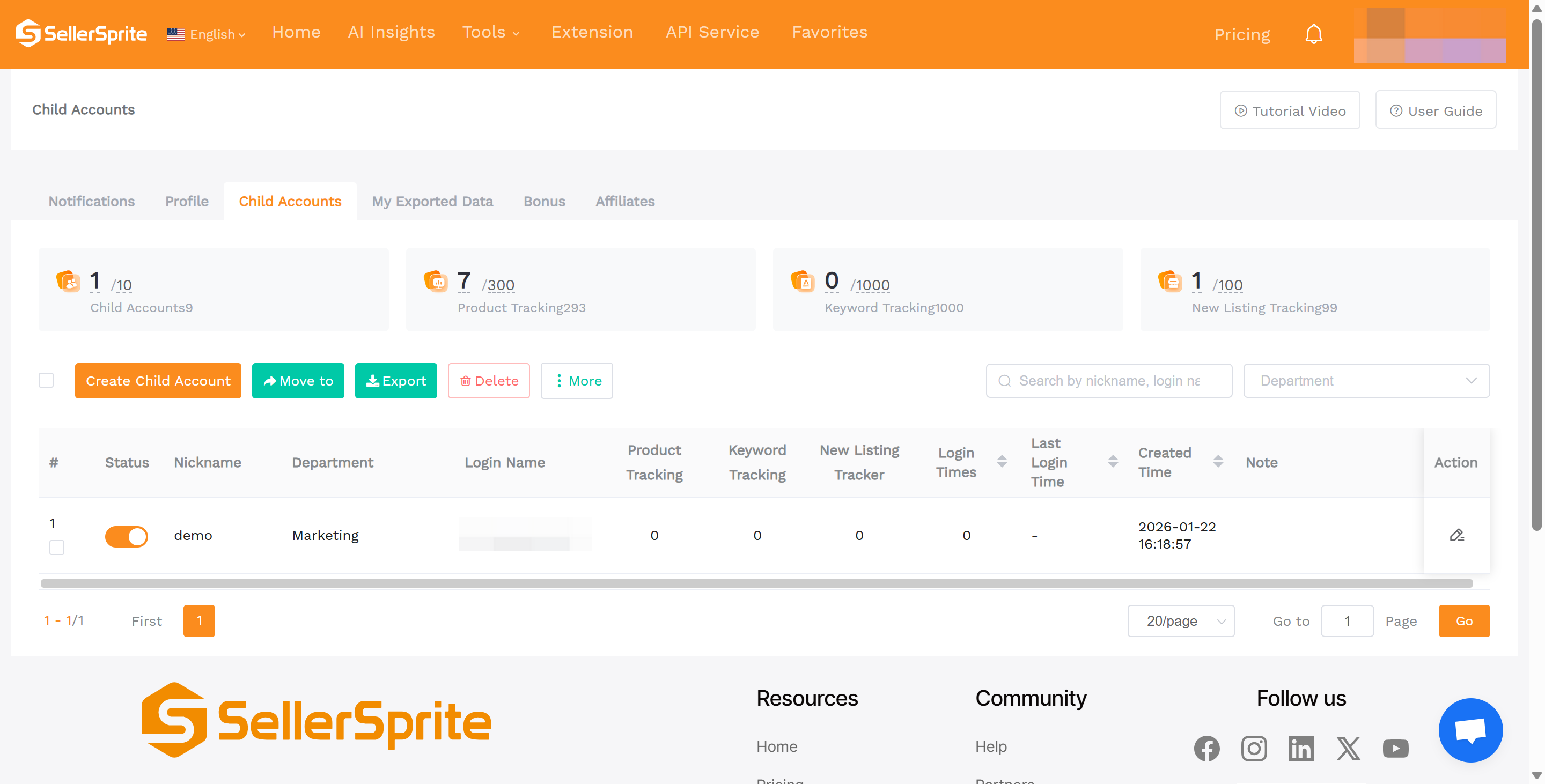
After creation, the child account appears in the Child Accounts list. Share the login name and password with your teammate so they can sign in.
Single-session limit: A child account supports only one active session at a time. Logging in elsewhere will force the current user to log out.
Child Account Management
- Activate or deactivate child accounts
- Edit child account details
- Reset child account passwords
FAQ
Can child accounts access all tools?
Child accounts can access tools included in the main account's plan, subject to plan limits.
Can a child account change its password?
No. Only the main account can edit child account details and reset the child account password.
Can multiple people use the same child account at the same time?
No. A child account supports only one active session at a time. If someone else logs in, the current user will be forced to log out.
Do disabled child accounts count toward my quota?
No. Disabled child accounts do not occupy your child account quota. You can disable an unused account and create a new one within your plan limits.
Where can I manage child accounts?
Go to Profile → Child Accounts to create, activate/deactivate, or edit child account information.