By SellerSprite Team
SellerSprite helps Amazon sellers build repeatable PPC workflows across keyword research, campaign analysis, bid control, and competitor monitoring. This chapter turns Campaign Manager into a practical weekly operating system, then shows how SellerSprite helps you validate keyword intent, monitor competitor pressure, and make faster budget decisions with more confidence.
Summary: A strong weekly PPC optimization routine inside Campaign Manager should follow a fixed SOP, not random edits. Review clean data on Monday, monitor drift midweek, and document actions before the next cycle. The core loop is simple: evaluate bids, harvest search terms, add negative keywords only when the signal is clear, and use SellerSprite to validate keyword quality, competitor pressure, and budget allocation before you make changes.
Key Takeaways
- Weekly optimization works best when you use the same review window, the same columns, and the same decision logic every week.
- The most useful loop is metric → judgment → action. That is what turns data into repeatable PPC decisions.
- Campaign Manager tells you what happened. SellerSprite helps you understand whether the keyword, competitor, or auction environment explains it.
- A weekly SOP usually improves ACoS, budget utilization, and core keyword stability more reliably than daily micromanagement.
Table of Contents
- Why should you optimize Amazon PPC weekly in Campaign Manager?
- What is the weekly PPC SOP for Monday, midweek, and weekend?
- How does the metric to judgment to action model work?
- What thresholds should trigger bid changes or negative keywords?
- Which Campaign Manager and SellerSprite views should you check?
- Case study: how weekly optimization improved efficiency
- Weekly PPC checklist and CTA
- FAQ
- References
Why should you optimize Amazon PPC weekly in Campaign Manager?
Direct answer: Weekly optimization is often the most practical rhythm because Campaign Manager data needs time to settle, and recent attribution can still be incomplete. A weekly cadence reduces noise, makes trend comparisons easier, and helps you avoid overreacting to one bad day.
The goal is not to touch the account more often. The goal is to make better changes when the data is trustworthy enough to support a real decision.
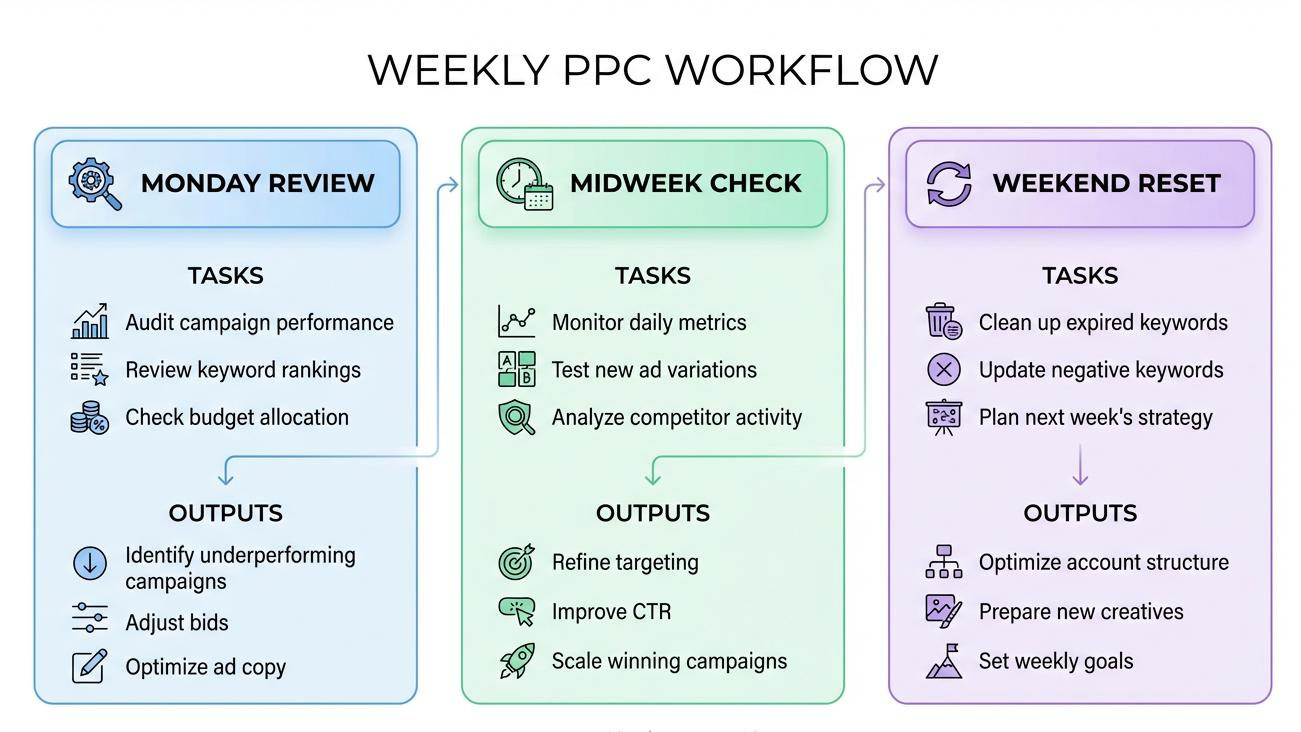
Takeaway: Weekly PPC optimization works because the signal is cleaner and the decisions are easier to repeat.
What is the weekly PPC SOP for Monday, midweek, and weekend?
Direct answer: The weekly SOP is simple. Monday is for full analysis and major edits, midweek is for drift checks and urgent fixes, and weekend is for cleanup, documentation, and preparing the next cycle.
Monday: full review and main actions
- Set the same review window: use a stable lookback period and avoid the newest data if attribution is still incomplete.
- Open Campaign Manager at Targeting level: sort by clicks, orders, CTR, ACoS, CPC, and bid.
- Cut waste first: lower bids on targets with enough clicks and no sales, or low CTR and no orders.
- Scale winners second: increase bids on profitable targets that still need more visibility.
- Harvest search terms: identify search terms worth promotion into stronger manual structures.
Midweek: drift and anomaly check
- Check budget exhaustion: confirm strong campaigns are not stopping too early in the day.
- Check stock and offer stability: do not keep scaling if inventory, price, or buy box conditions have changed.
- Check anomalies only: look for sudden CPC spikes, impression drops, or obvious performance breaks, but avoid full re-optimization midweek.
Weekend: reset and prepare the next cycle
- Log changes: note bid reductions, bid increases, negatives added, and budget shifts.
- Prepare next actions: shortlist scale targets, weak targets, and any listing or keyword issues to address next Monday.
- Let the system gather fresh data: avoid unnecessary edits before the next full review cycle.
Set up your weekly SOP
- Choose your review day and use the same columns every week.
- Open Campaign Manager and SellerSprite side by side.
- Follow the same sequence until it becomes habit.
How does the metric to judgment to action model work?
Direct answer: The model is a closed loop. First read the metric, then judge what it means, then apply the smallest useful action. This keeps weekly optimization rational and prevents over-editing.
- Metric: the observable number, such as clicks, CTR, ACoS, or orders.
- Judgment: the reasoned interpretation, such as weak relevance, inefficient cost, or a scale opportunity.
- Action: the response, such as lowering a bid, adding a negative, or increasing a profitable bid.
Example: Metric = 12 clicks and zero orders. Judgment = traffic is costing money without proof of purchase intent. Action = cut to a low maintenance bid and observe one more cycle.
What thresholds should trigger bid changes or negative keywords?
Direct answer: Use a consistent rule table so the same inputs produce the same action every week. The goal is not perfect universal thresholds. The goal is to reduce subjective decisions.
Which Campaign Manager and SellerSprite views should you check each week?
Direct answer: Start in Campaign Manager for raw ad performance, then use SellerSprite to validate what the numbers mean. This is how you move from reporting into decision quality.
- Campaign Manager: use the Targeting view with impressions, clicks, CTR, CPC, orders, sales, ACoS, and bids visible.
- SellerSprite Keyword Research: check whether a weak target is actually the wrong keyword for the product.
- SellerSprite Ads Insights: compare campaign pressure and identify where budget is being wasted or where competitors are pushing harder.
- SellerSprite Product Tracker: confirm whether competitor price, rating, or stock changes are affecting your ad performance.
Validate before you change bids
- Check whether the keyword actually fits your product.
- Check whether a competitor move explains the performance shift.
- Only then adjust bids or negatives.
Case study: how weekly optimization improved ACoS, budget utilization, and core keyword stability
Direct answer: Weekly optimization often wins not because of one dramatic change, but because it removes waste steadily while giving stronger targets more room to perform.
Anonymous account example
A growing account was optimizing unpredictably, which meant strong exact targets were underfunded while weak discovery traffic kept spending. The team moved to a strict weekly SOP with one review window, one threshold table, and SellerSprite checks before each bid change.
- Week 1: lowered bids on high-click zero-sale targets and reduced spend leakage.
- Week 2: shifted budget into stronger exact targets with stable conversion proof.
- Week 3: added a small set of negatives only after repeated poor relevance was confirmed.
- Observed pattern: ACoS improved, budget utilization became more intentional, and core keyword performance became easier to maintain because fewer weak targets were draining spend.
This is a representative pattern based on recurring operational behavior. Exact outcomes will vary by category, offer quality, and campaign maturity.
What is the weekly PPC checklist you can execute right now?
Direct answer: Use the checklist below exactly as written for your next review cycle. The value comes from repeating the same logic every week until the account becomes easier to read.
Weekly PPC checklist
- Set your review window and exclude unstable recent data if needed.
- Open Campaign Manager with CTR, CPC, orders, sales, ACoS, and bid columns visible.
- Reduce waste first by cutting bids on poor targets before you scale anything.
- Scale strong targets second by increasing bids only where efficiency and volume justify it.
- Use SellerSprite to validate keyword quality, competitor pressure, and budget allocation logic.
- Log your changes so next week's judgment is easier.
FAQ
How often should I optimize PPC in Campaign Manager?
For many accounts, once per week is a strong default because it gives performance data enough time to settle. Very high-volume accounts may review more often, but the same logic should still apply.
How many clicks should I wait for before changing a bid?
Use a threshold that is meaningful for your account and review window. The important part is consistency. A target needs enough clicks to justify a real judgment instead of a guess.
When should I add negative keywords?
Add negative keywords when repeated spend shows clear mismatch or irrelevant search intent. Do not add them too early based on one small or noisy sample.
Should I optimize only by ACoS?
No. ACoS matters, but it should be interpreted together with clicks, impressions, CTR, and orders. A target with sales deserves different treatment than a target with pure waste.
What if weekly changes reduce spend, but sales also drop?
That often means you cut too deep or removed strong traffic along with weak traffic. Recheck your exact winners, budget caps, inventory, and competitor changes before increasing spend blindly.
Get Help From the SellerSprite Community
Share your negotiation situation, get feedback, and learn from other sellers in the SellerSprite Discord and Facebook Group.
View The SellerSprite Course Directory
Ready for the next step? Open the SellerSprite Academy course directory to continue building your Amazon FBA skills chapter by chapter.