TL;DR: The best mobile setup for Amazon sellers is not a single app. It is the official Amazon Seller Central app plus a small, intentional stack for research, price tracking, inventory, finance, and team communication, backed by a clear routine for what you handle on your phone and what waits for desktop.
Key Takeaways
- Start with the official Amazon Seller Central mobile app. It is the only app that connects directly to your seller account for core order, inventory, and message tasks.
- Choose additional apps by job-to-be-done, not by feature count. A researcher needs different tools than an operations manager.
- Mobile is for triage, approvals, and quick checks. Bulk listing edits, complex PPC changes, and financial reconciliation belong on desktop.
- A 15-minute morning check and a 10-minute evening handoff prevent most on-the-go surprises.
- Security is an operating requirement: use two-step verification, least-privilege permissions, cellular or VPN access, and a lost-device plan.
Table of Contents
- Why Managing an Amazon Business on Your Phone Is Now Table Stakes
- The Best Apps for Amazon Sellers: A Category-by-Category Checklist
- Amazon Seller Central Mobile App: What It Does Well and Where It Stops
- Feature Checklist: What to Look for in Amazon Seller Tools Mobile
- A Practical On-the-Go Workflow for Amazon Sellers
- Security and Account Safety on Mobile
- Where Mobile Management Breaks Down
- How to Choose the Best Apps for Amazon Sellers by Stage
- Mini Case Study: A Composite On-the-Go Workflow
- Common Mistakes to Avoid
- FAQ
- Next Steps
- References
Note on marketplaces: This guide is specifically optimized for the US market.
Mobile Apps for Amazon Sellers: Managing on the Go is a practical guide for sellers who need to keep orders, inventory, messages, and advertising moving while they are away from a desk. Whether you are a new seller checking your first orders, a growing brand at a trade show, an operations manager commuting, or a large seller approving spend from a warehouse floor, the goal is the same: use the phone as a control layer, not as a replacement for your entire back office.
Why Managing an Amazon Business on Your Phone Is Now Table Stakes
Amazon selling is a real-time business. A buyer message can sit unanswered, a best-selling SKU can run out of stock, a competitor can change a price, or an ad campaign can burn through a budget while you are away from your laptop. The phone closes that gap. It lets you see the signal early, decide whether it can wait, and act when it cannot.
Think about the moments when mobile management matters most:
- Sourcing trips and trade shows: You meet a supplier, see a sample, and want to check demand, competition, and margin before you commit.
- Warehouse and 3PL visits: You need to confirm inbound shipments, check receiving discrepancies, and approve replenishment.
- Commutes and school runs: Ten minutes in the car or on a train is enough to clear messages and flag inventory risk.
- Evenings and weekends: A quick check protects customer experience without turning every night into a work session.
- Travel and emergencies: A delayed flight or a family emergency should not leave your account unmanaged.
The convenience is real, but so is the risk. Mobile management works only when you separate triage from deep work. Triage is fast: scan, prioritize, respond, assign, and defer. Deep work is slower: analyze, compare, edit in bulk, negotiate, and document. A phone is excellent for the first and poor for the second. The sellers who manage well on the go are not the ones with the most apps; they are the ones with the clearest rules about which tasks belong on which device.
This guide is written for four groups: new sellers who need a simple starting stack, growing sellers who are adding inventory and ad complexity, operations and marketing managers who need visibility without logging into everything, and brand or large sellers who need mobile access without weakening security or control. Use it as a checklist, not a shopping list.

The Best Apps for Amazon Sellers: A Category-by-Category Checklist
There is no single best app for every seller because Amazon selling is not one job. It is a set of jobs: sell, source, price, advertise, fulfill, account, and lead a team. The most useful mobile stack maps an app to each job, then removes anything that does not earn its place.
How we evaluate: we prioritize official Amazon tools for account actions, mobile usefulness over desktop feature parity, security and permission controls, transparent pricing, and a clear US-market fit. App features and pricing change frequently, so verify the current details in the App Store, Google Play, or the provider's official site before you rely on them.
1. Amazon Seller Central Mobile App: The Non-Negotiable Foundation
Best for: every seller. This is the command center for orders, inventory, messages, and account health.
Mobile features to use: sales dashboard, order status, buy shipping where available, inventory alerts, buyer-seller messages, product lookup and scanning where available, account health notifications, and performance updates.
Watch-outs: the app is not a full replacement for Seller Central on desktop. Bulk uploads, advanced reports, detailed case management, and some advertising workflows are still easier or only available on the web. Do not make irreversible listing or pricing changes in a hurry just because the app makes it easy.
Pro tip: turn on only the notifications you will act on. A phone that buzzes for every sale will train you to ignore the alert that matters.
2. Amazon Ads Mobile App: Campaign Pulse Checks
Best for: sellers and managers who need a campaign pulse check without opening a laptop.
Mobile features to use: spend and sales snapshots, campaign status, budget pacing, and alerts for underperforming or out-of-budget campaigns.
Watch-outs: do not restructure campaigns on a phone. Small screens hide attribution context and make it easy to misread a short date range. Use mobile to spot the issue and desktop to fix it.
Pro tip: define a daily spend threshold. If the app shows a campaign pacing above it, pause or adjust only after checking the last seven days, not the last hour.
3. SellerSprite: Mobile-Friendly Research and Competitor Checks
Best for: product and keyword research, competitor checks, and quick margin validation when you are away from your desk.
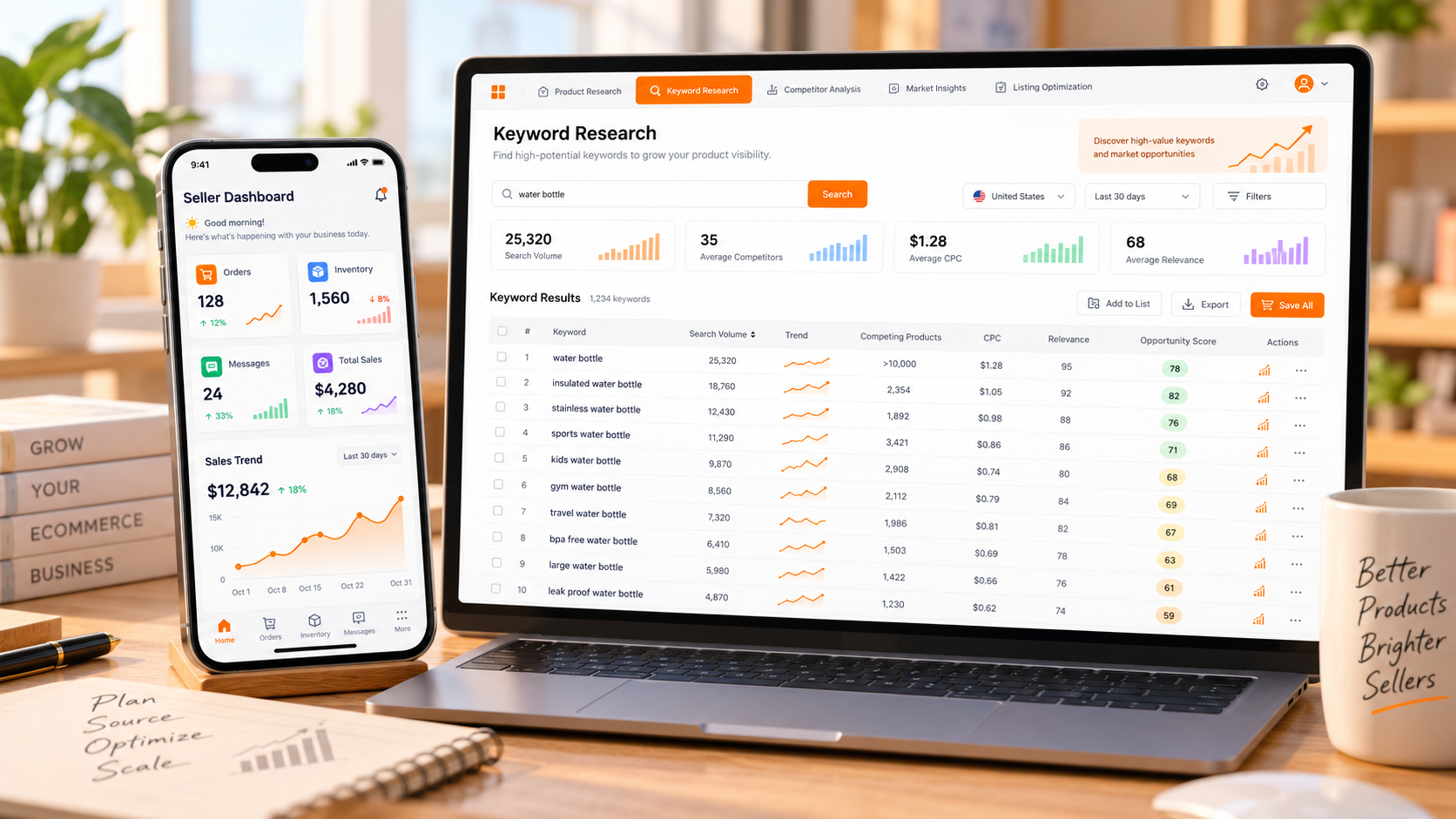
Mobile features to use: access key research workflows through a mobile browser, check keyword demand, review competitor listings, estimate fees and margins, and save ideas for a deeper desktop review. SellerSprite is especially useful during sourcing trips when you need a second data point before requesting samples.
Watch-outs: deep analysis, large exports, and long comparison tables are better on desktop. Treat mobile research as a filter, not a final decision.
Pro tip: before a supplier meeting, save three candidate products and three keyword ideas in your notes. If the conversation goes well, you already have a shortlist to validate. For a broader comparison of the tool landscape, see our guide to the best Amazon seller tools.
4. Price and Rank Tracking Apps: Watch the SKUs That Matter
Best for: sellers in competitive categories who need to know when a buy box, price, or ranking changes.
Mobile features to use: price history charts, watchlists, and alerts. Keepa is a well-known option for price history; other trackers may include rank and offer alerts.
Watch-outs: alerts can become noise. Track the SKUs that represent most of your revenue, not every product you have ever sold. Also check whether the app shows the marketplace you actually sell in; US data is not a proxy for every marketplace.
Pro tip: create a watchlist for your top 10 ASINs and your top five competitors. Review it once a day, not once an hour.
5. Product Research Apps: Reject Bad Ideas Faster
Best for: sellers who evaluate new products while traveling or between meetings.
Mobile features to use: sales estimates, keyword search volume, competition snapshots, and saved lists. Helium 10 and Jungle Scout both offer mobile app experiences; confirm the current feature set and plan requirements in the app store.
Watch-outs: mobile estimates are directional. Do not commit to a large inventory order based on a single screen. Validate demand, fees, seasonality, and competition on desktop before you wire a deposit.
Pro tip: use the phone to reject bad ideas quickly. A 30-second check that saves a $5,000 order is a better use of mobile research than trying to build a full business case on a five-inch screen.
6. Inventory and Order Management: Where Mobile Mistakes Get Expensive
Best for: growing sellers and multichannel brands that need a single view of stock and orders.
Mobile features to use: low-stock alerts, inbound shipment status, order exceptions, and sales velocity. Platforms such as Sellbrite and Zentail offer multichannel inventory workflows; check whether their mobile experience covers the tasks you need.
Watch-outs: inventory is where mobile mistakes get expensive. A wrong quantity or a mistaken shipment confirmation can create overselling, late shipment defects, or stranded inventory. If the app does not show a clear confirmation step, wait for desktop.
Pro tip: set two thresholds for every hero SKU: a warning level and a stop-sell level. Mobile is good for seeing the warning; desktop is better for placing the replenishment order.
7. Finance and Bookkeeping: Know Your Cash Position
Best for: every seller who wants to know cash position, not just sales.
Mobile features to use: receipt capture, bank balance snapshots, invoice approval, and expense categorization. QuickBooks, Xero, and Wave all offer mobile apps with receipt and dashboard features.
Watch-outs: mobile bookkeeping is for capture and review, not for month-end reconciliation. Do not approve large payments or change accounting categories without a second look.
Pro tip: photograph receipts at the moment of purchase and add a one-line note. Future you will thank present you during tax season.
8. Team Communication and Tasks: Coordinate Without Chaos
Best for: sellers with a virtual assistant, agency, or in-house team.
Mobile features to use: channels for orders, inventory, and advertising; task assignments; approval requests; and shared notes. Slack, Microsoft Teams, Asana, Trello, and Notion all have mature mobile apps.
Watch-outs: chat is not a system of record. A decision buried in a thread is not documentation. Move final decisions into your SOP, task manager, or Seller Central case log.
Pro tip: create one channel for urgent account issues and keep it quiet for everything else. If everything is urgent, nothing is.
A note on app sprawl: if an app does not support a weekly decision, delete it. The best apps for Amazon sellers are not the ones with the longest feature lists. They are the ones that fit your actual workflow, respect your permissions, and give you a reliable answer when you are standing in a warehouse or sitting in an airport.
Amazon Seller Central Mobile App: What It Does Well and Where It Stops
The Amazon Seller Central mobile app is the closest thing to a required app. It connects directly to your seller account, which means it is the safest place to check official order, inventory, and message data. But it is not a pocket-sized version of the full Seller Central website. Knowing the boundary saves time and prevents mistakes.
What the official app does well
- Order visibility: see new orders, order status, and exceptions; confirm shipment or buy shipping where the workflow is supported.
- Inventory checks: review FBA and merchant-fulfilled stock, low-stock alerts, and inbound status without opening a laptop.
- Buyer messages: read and respond to customer messages, which is often the highest-value mobile task.
- Account health: catch policy warnings, performance notifications, and listing issues before they become suspensions.
- Sales snapshot: check daily sales, units, and trends to spot a sudden drop or spike.
- Product lookup: scan or search products where the app supports it, useful during sourcing and warehouse checks.
Where the app stops
Bulk listing uploads, advanced business reports, detailed advertising restructuring, settlement reconciliation, complex case management, supplier negotiations, and multi-user permission changes are still desktop work. Some tasks are technically possible on mobile but are so error-prone that they should wait. The practical rule: if a task involves more than a few records, a legal or financial commitment, or a change that is hard to reverse, move to desktop.
Workaround: use the phone to capture and queue, and the desktop to execute. Take a screenshot, write a voice memo, or add a task with the ASIN and the question. Then batch the desktop work into one focused block instead of trying to finish it in a checkout line.
One more boundary: the app is not a substitute for a documented process. If your team relies on memory and chat threads, mobile access will amplify the chaos rather than reduce it. Write down the escalation path for stockouts, negative feedback, account warnings, and pricing emergencies. Then the phone becomes a way to trigger the process, not invent one in the moment.
Feature Checklist: What to Look for in Amazon Seller Tools Mobile
Use this checklist when you evaluate any Amazon seller app. Score each feature as must-have, nice-to-have, or not needed for your current stage. The goal is not the longest list; it is the shortest list that supports your weekly decisions.
| Feature | Why it matters on mobile | What good looks like |
|---|---|---|
| Order and message alerts | These are the tasks most likely to affect customer experience today. | Clear alerts, a timestamp, and a one-tap path to the order or message. |
| Inventory health and low-stock thresholds | A stockout can erase weeks of ranking momentum. | Separate FBA and merchant-fulfilled views, inbound status, and configurable thresholds. |
| Sales and cash-flow dashboard | You need to know whether the business is on pace, not just whether it is busy. | Daily and weekly trends, fees included, and a clear data refresh time. |
| Advertising pulse checks | Ad spend can move faster than sales. | Budget pacing, spend alerts, and campaign status without requiring a full rebuild. |
| Keyword and rank tracking | Helps you spot demand shifts and listing changes while sourcing or traveling. | A short watchlist, clean charts, and an export for desktop review. |
| Profit and fee calculator | Prevents you from falling in love with a product that cannot make money. | Uses current referral and fulfillment fees, and lets you adjust cost inputs. |
| Barcode scanning and product lookup | Useful at trade shows, warehouses, and retail arbitrage checks. | Fast scan, clear match, and a path to save the result. |
| Multi-marketplace switching | US sellers may also sell in Canada, Mexico, or Europe. | An obvious marketplace label so you do not act on the wrong account. |
| Role-based permissions | A phone can be lost or shared; access should not be all-or-nothing. | Named users, limited roles, and an audit trail for sensitive actions. |
| Offline access and export | Flights, warehouses, and rural areas do not always have signal. | Downloadable reports, saved views, and a clean CSV export. |
Three features are non-negotiable for most sellers: secure authentication, clear order or inventory alerts, and a desktop counterpart for complex work. If an app lacks a desktop counterpart, ask how you will handle bulk edits and reporting. If it lacks role-based permissions, ask who on your team can change prices or approve refunds from a phone.
Also check the data refresh. Mobile dashboards can lag behind Seller Central. Before you react to a sales drop or a stock alert, confirm the timestamp and refresh the data. A five-minute delay is normal; a five-hour delay changes how you use the app.
Finally, review pricing and cancellation terms. Mobile apps often sell annual plans in the app store, and subscriptions can be harder to manage on a phone. Prefer a plan you can review and cancel from a desktop account page, and keep a simple list of what each subscription is supposed to do for your business.
A Practical On-the-Go Workflow for Amazon Sellers
A mobile stack without a routine becomes another source of anxiety. The routine below is designed for a seller or manager who wants to protect the account without working all day. Adjust the times, but keep the sequence.
The 15-minute morning triage
Do this before email, social media, or anything else. The goal is to find the three things that need attention today.
- Orders: look for unshipped orders, late shipment risk, and order exceptions. Confirm anything that can be confirmed safely.
- Messages: clear buyer messages and flag anything that needs a policy check, refund approval, or a supplier question.
- Inventory: check low-stock alerts and inbound delays for hero SKUs. Note any SKU that will run out before the next replenishment.
- Account health: scan for policy warnings, listing suppressions, and performance notifications.
- Advertising: check spend pacing and any campaign that is out of budget or suddenly unprofitable.
- Price and buy box: review the top SKUs for unexpected price changes or buy box loss.
- One decision: choose the single most important action for the day and put it at the top of your task list.
The 5-minute midday pulse
Check sales pace against your daily plan, any promotion or coupon that is live, and one competitor price. Do not open every app. The midday check is a smoke test, not a deep review. If something looks wrong, write it down and investigate on desktop.
The 10-minute evening handoff
Before you stop working, close the loop. Reply to any remaining buyer message, update the task list, and leave a note for your team or your future self. The note should answer three questions: What changed today? What needs a decision tomorrow? What can wait?
The weekly 30-to-45-minute desktop block
Mobile triage only works if it feeds a deeper weekly review. Use one focused desktop session for advertising structure, keyword and rank tracking, inventory forecasting, profit and fee review, listing optimization, and supplier follow-ups. Document the decisions in your SOP so the next mobile check has context.
| Time | Task | Output |
|---|---|---|
| Morning, 15 minutes | Orders, messages, inventory, account health, ad pacing | A list of three actions for the day |
| Midday, 5 minutes | Sales pace, promotions, one competitor price | One adjustment or a deliberate no-action decision |
| Evening, 10 minutes | Remaining messages, task updates, handoff notes | A clear starting point for tomorrow |
| Weekly, 30 to 45 minutes | PPC structure, keywords, inventory forecast, profit review | Documented decisions and updated SOPs |
Travel mode checklist:
- Test the apps you plan to use before you leave.
- Download offline copies of key reports.
- Set up an authenticator app and backup codes.
- Carry a charged power bank and a hotspot.
- Tell your team who is covering what.
- Set an out-of-office expectation for non-urgent messages.
- Check time zones for ad schedules and promotion start times.
- Identify a desktop backup: a laptop, a trusted team member, or a coworking space.
Security and Account Safety on Mobile
Your phone is now a key to your business. Treat it like one. The most common mobile security mistakes are not sophisticated attacks; they are shared passwords, ignored permissions, and admin tasks on public Wi-Fi.
Authentication and device controls
- Use the official app or the official mobile browser experience. Be cautious with any third-party app that asks for your Seller Central password directly.
- Turn on two-step verification and prefer an authenticator app or passkey over SMS where available.
- Store backup codes somewhere safe and offline, not in the same phone photos album.
- Use a device passcode, biometric unlock, and remote wipe. Enable find-my-device features.
- Keep your phone OS and apps updated. Security patches matter more than new features.
Network and access hygiene
- Use cellular data or a trusted VPN for admin tasks. Avoid public Wi-Fi in airports, hotels, and coffee shops for password changes or payment approvals.
- Use least-privilege permissions. A virtual assistant who handles messages does not need permission to change prices or bank details.
- Never share one login across a team. Create named users so actions are traceable.
- Review active sessions and connected apps regularly. Revoke anything you do not recognize.
- Log out of shared devices and avoid saving passwords in a shared browser.
Phishing and social engineering
Mobile email and text make phishing easier to miss. Verify the sender domain, be suspicious of urgent account suspension messages, and never share a one-time code. Amazon support should not ask you to share a one-time password; treat any such request as suspicious and verify through Seller Central directly. If a message claims your account is at risk, open Seller Central yourself instead of tapping the link.
If your phone is lost or stolen
- Change your Amazon seller password from a trusted device.
- Revoke active sessions and review connected apps.
- Remove the device from your authenticator setup if possible.
- Check for unauthorized listing, pricing, or payment changes.
- Notify your team and document the incident.
Where Mobile Management Breaks Down
Mobile is a control layer, not a back office. It breaks down when you ask it to do work that requires context, comparison, or an audit trail. The following tasks should almost always wait for a desktop:
- Bulk listing and inventory edits: one wrong field can affect hundreds of ASINs.
- Complex PPC restructuring: campaign, ad group, match type, and placement decisions need a larger view.
- Financial reconciliation: settlements, fees, refunds, and reimbursements require line-by-line review.
- Supplier negotiations and contracts: do not approve terms from a phone while distracted.
- Legal, tax, and compliance responses: these need documents, dates, and a second review.
- Case management with Amazon: a well-written case with attachments is desktop work.
- Multi-marketplace expansion: currency, tax, language, and compliance differences are hard to manage on a small screen.
The rule of thumb is simple: if the task involves more than 20 rows, more than one person, or more than one currency, move to desktop. If it involves an irreversible change, get a second pair of eyes. Mobile speed is valuable only when it does not create expensive cleanup.
How to Choose the Best Apps for Amazon Sellers by Stage
Your stage changes your stack. A new seller does not need the same tools as a brand with a warehouse team, and a large seller should not manage complexity through a patchwork of consumer apps. Use the matrix below as a starting point.
| Seller stage | Must-have on mobile | Nice-to-have | Avoid |
|---|---|---|---|
| New seller | Official Seller Central app, secure two-step verification, one free research tool | Simple bookkeeping app, task list | Multiple paid research subscriptions before you know your weekly decisions |
| Growing seller | Inventory alerts, PPC monitoring, profit dashboard | Price tracker, team chat, saved research lists | Bulk-edit workflows without a desktop review step |
| Operations or marketing manager | Role-based permissions, approval workflow, shared dashboard | Automation alerts, reporting exports | Shared passwords and personal logins for team tasks |
| Brand or large seller | SSO, audit logs, ERP or multichannel sync, dedicated support | Custom dashboards, API access | Managing complex operations only through chat and consumer apps |
New sellers: start with the official app, a secure authenticator, a simple bookkeeping app, and one free or low-cost research tool. Your goal is to learn the business, not to automate it. Avoid annual subscriptions before you know which weekly decisions you actually make.
Growing sellers: add inventory alerts, a profit dashboard, and a price tracker. The risk shifts from learning to coordination. Set service-level targets for buyer messages and a clear rule for when a mobile alert becomes a desktop task.
Operations and marketing managers: permissions and reporting matter more than another research feature. You need named users, approval workflows, and a shared dashboard that shows the same numbers to everyone. If you cannot audit who changed a price, you are not ready to manage pricing from mobile.
Brand and large sellers: look for SSO, audit logs, API access, multichannel inventory, and vendor support. Mobile should be an alert and approval layer on top of an ERP or established system of record, not the system itself. A brand with a dozen marketplaces needs consistency more than convenience.
If you want a research layer that works on mobile and scales to desktop, you can create your free SellerSprite account and start with a shortlist of products and keywords.
Mini Case Study: A Composite On-the-Go Workflow
This is an illustrative composite, not a client testimonial or a guarantee of results. It shows how the checklist above can fit a real operating rhythm.
Imagine a two-person home-goods brand doing low six figures a year on Amazon. The founder is heading to a three-day trade show and will be away from the laptop for most of it. The operations lead is covering the warehouse and customer messages.
Before the trip: They create a named user for the operations lead with message and order permissions, but not pricing or payment access. They set mobile notifications for buyer messages, low-stock hero SKUs, and account health only. They download a replenishment report and a list of open supplier questions. They agree on a 9 a.m. and 6 p.m. check-in.
During the trip: The founder does a 15-minute morning triage in the hotel lobby using cellular data. At the show, a supplier offers a new variant. Instead of guessing, the founder opens SellerSprite in a mobile browser, checks keyword demand, reviews two competitor listings, and estimates margin with current fees. The idea looks promising but needs a desktop review, so it goes into a shortlist. In the evening, the founder sends a 10-minute handoff note: one message needs a policy check, one SKU is two weeks from stockout, and the new variant is a candidate for a sample order.
After the trip: The founder spends 45 minutes on desktop validating the variant, updating the inventory forecast, and documenting the decision in the SOP. The phone handled the moments that could not wait. The desktop handled the decisions that needed context.
The lesson is not a specific revenue lift. It is the division of labor: mobile for signal and speed, desktop for analysis and irreversible action. That division is what makes managing on the go sustainable.

Common Mistakes to Avoid
- Downloading every app: each app adds notifications, cost, and a login to manage. Keep only the tools that support a weekly decision.
- Using a personal phone without controls: a shared family phone, an old passcode, or a saved password in a browser undermines every other security step.
- Treating notifications as a strategy: alerts tell you something changed; they do not tell you what to do. Pair every alert with an owner and an action.
- Making irreversible changes in a hurry: price cuts, listing deletions, and bulk inventory edits are hard to undo. If you would not do it in a meeting, do not do it in a checkout line.
- Ignoring permissions: one shared admin login is convenient until someone leaves the team or makes a mistake.
- Working on public Wi-Fi: use cellular or a trusted VPN for account access, especially for password or payment changes.
- Assuming app data is real time: check the timestamp. A delayed dashboard can make a normal sales dip look like a crisis.
- Not testing before travel: open the apps, check the login, and confirm your two-step verification method works before you are in a foreign country with no service.
- Forgetting time zones: ad schedules, coupon start times, and supplier calls are easy to miss across time zones.
- Buying annual plans too early: a tool is only worth it if it changes a decision you make at least monthly.
FAQ
What is the best mobile app for managing an Amazon seller business on the go?
There is no single best app. The official Amazon Seller Central app is the foundation because it connects directly to orders, inventory, messages, and account health. Add a research tool such as SellerSprite for product and keyword checks, a price tracker such as Keepa for watchlists, and a finance or team app only if those are real bottlenecks. The best app is the one that supports a decision you actually make every week.
Can I manage my Amazon Seller Central account from my phone in the US?
Yes. Amazon offers an official Seller Central mobile app, and Seller Central can also be accessed through a mobile browser. You can check orders, inventory, messages, and account health on a phone. However, some tasks, such as bulk uploads, advanced reports, and complex advertising changes, are still better on desktop. Use the app for triage and the desktop for deep work, and keep two-step verification enabled.
Which mobile app features help Amazon sellers track inventory and orders while traveling?
Look for push alerts for low stock and order exceptions, an inventory health view that separates FBA and merchant-fulfilled stock, inbound shipment status, sales velocity, and a clear order status screen. A good travel setup also includes offline access to key reports, a barcode or product lookup feature where available, and a daily summary notification. If an app cannot show the timestamp of the data, treat it as a snapshot rather than a live view.
Is it safe to manage my Amazon business on public Wi-Fi?
It is safer to use cellular data or a trusted VPN for account access. Public Wi-Fi can expose you to interception or fake hotspots, especially when you are changing passwords, approving payments, or adjusting bank details. If you must use public Wi-Fi, avoid admin tasks, use a VPN, and log out afterward. Two-step verification and a device passcode are baseline protections, not optional extras.
Do I need paid apps to manage my Amazon business on the go?
No. Start with the official Seller Central app, a secure authenticator, and free tiers of research tools. Add paid tools when you can name the specific weekly decision they improve, such as inventory replenishment, keyword tracking, or profit review. A paid app that you open once a month is usually a subscription you should cancel.
How should I handle buyer messages on mobile?
Set a service-level target, such as same business day, and use saved responses for common questions. On mobile, read the full message, check the order and policy context, and avoid promising a refund or replacement you cannot authorize. If the issue is complex, send a brief holding reply with a clear next step, then handle it on desktop. Never share customer data outside the approved channels.
Next Steps
You do not need a perfect stack today. You need a stack that supports the next 30 days of decisions.
- Audit your current apps: list every app with access to your Amazon business, note its job, and remove anything you have not used in 30 days.
- Lock down access: turn on two-step verification, create named users, and review permissions for anyone who can change prices, inventory, or payment details.
- Set your routine: schedule a 15-minute morning triage and a 10-minute evening handoff for the next two weeks. Adjust based on what actually surfaces.
- Build a travel kit: test your apps, download backup codes, pack a power bank, and identify a desktop backup before your next trip.
- Put one research tool to work: create your free SellerSprite account and use your next mobile check to validate one product or keyword idea instead of scrolling.
Ready to make your mobile research count? Use SellerSprite to check demand, competition, and margin before your next supplier call. Create your free account and explore the research workspace on your phone or desktop.
References
- Amazon Seller App official page View
- Amazon Seller Central View
- Amazon Seller University learning resources View
- SellerSprite guide to the best Amazon seller tools View
- SellerSprite blog for ongoing seller workflow guides View
- Apple App Store and Google Play listings for current app features and pricing View
By SellerSprite Content Expert
Amazon seller tools and marketplace SEO specialist.
Editorial process: AI-assisted draft prepared for human fact-checking, source verification, and brand review before publication.