By SellerSprite Team | Listing Optimization
SellerSprite supports a large global seller base across Amazon marketplaces with tools for keyword research, index checks, listing optimization, and performance tracking. This guide is built from recurring patterns we observe in day-to-day listing work, plus Amazon front-end behavior testing and SellerSprite tool workflows across Amazon.com and other major locales.
TL;DR: If your listing is not indexed for your highest intent keywords, you will not show in Amazon search for those queries, even if your copy looks optimized. In parallel, high-converting product photos can lift click-through rate and conversion, which helps your organic momentum and increases the chance your page is referenced in AI search summaries. This 2026 playbook shows how to check Amazon keyword indexing fast, fix indexing gaps safely, and build a mobile-friendly image set using SellerSprite tools.
Key Takeaways
- Amazon keyword indexing is a visibility gate. No index, no impressions for that keyword.
- Use a fast manual test (ASIN + keyword) to confirm indexing, then switch to bulk checks in SellerSprite when you scale to dozens of terms.
- Fix missing indexing by placing keywords in the right field (title first, then bullets), keeping phrasing natural and compliant.
- A 7 to 9 image set (hero, product detail, lifestyle, infographic) improves conversion, especially on mobile.
- AI search summaries favor clear, chunked answers, verified steps, and strong trust signals. Indexing plus evidence-based visuals helps your listing become more quotable.
Table of Contents
Note on marketplaces: Examples in this guide use Amazon.com (US). The same workflow applies to UK and EU marketplaces, and it can be adapted for JP, but stop word behavior, language structure, and indexing sensitivity may differ by locale and category.
Amazon Keyword Indexing Explained
Summary: Amazon keyword indexing means Amazon has associated your ASIN with a query so you can appear somewhere in the search results for that keyword. Indexing is not ranking, but it is a prerequisite for ranking.
Indexing problems usually show up as a silent traffic ceiling. You can have great copy and still get zero impressions for a keyword if Amazon does not index it for your ASIN. When we audit listings, indexing gaps are one of the fastest fixes with the highest upside.
Common mistake: Assuming keyword placement equals indexing. Sometimes Amazon does not index a term due to spacing, order, policy filters, suppressed content, or a term only appearing in a weak field.
Quick fix mindset: Verify indexing first, then move keywords into stronger fields (title, bullets) before you rewrite everything.
Want deeper Amazon SEO context? Read Amazon SEO Tips and the broader Amazon Keyword Research Guide.
How to Check Amazon Keyword Indexing Fast
Summary: Start with a manual ASIN plus keyword test to validate the top 10 terms, then use SellerSprite to check indexing in bulk and keep a repeatable tracking loop. This avoids guesswork and helps you spot indexing drops after edits.
Manual Indexing Check Using Amazon Search
Amazon does not show an official indexed keyword list for most sellers, but the front-end search behavior is easy to test.
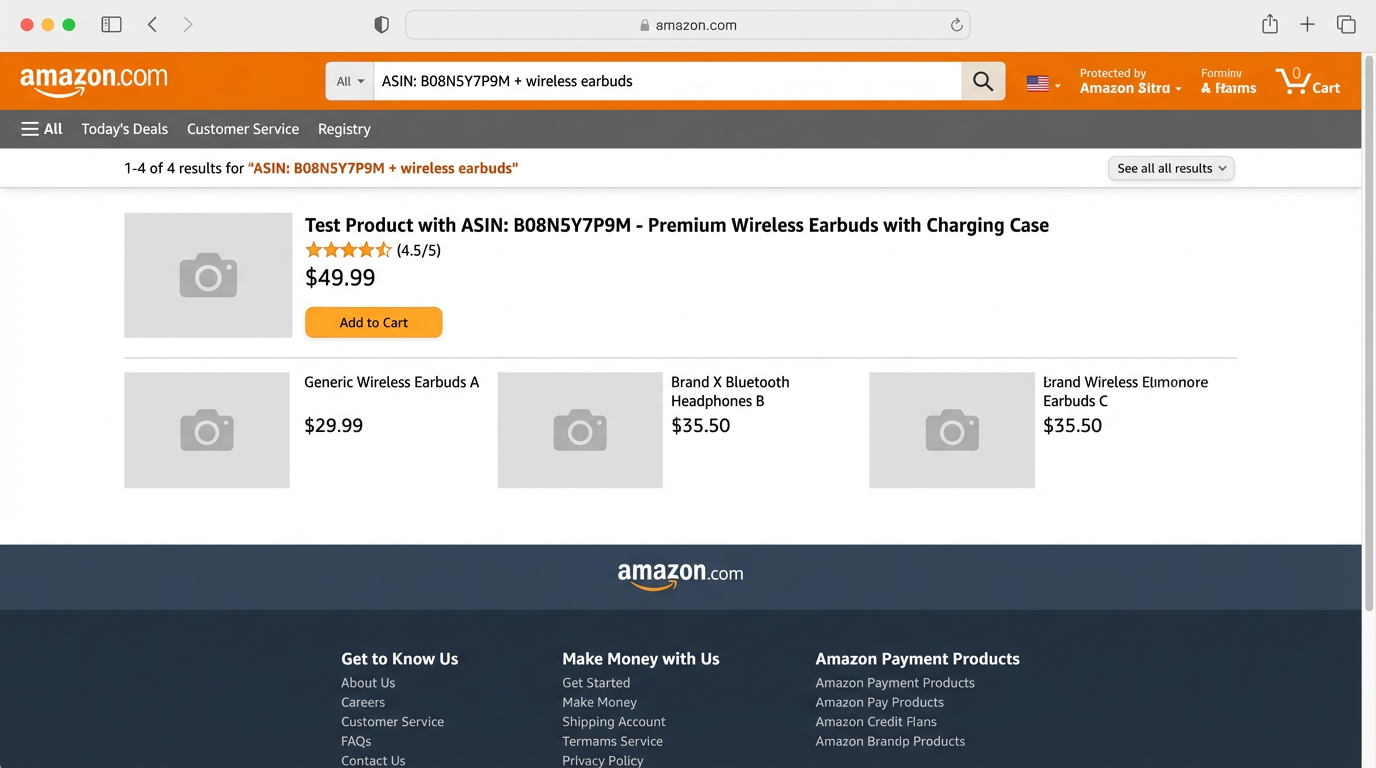
- Copy your ASIN from the listing URL or Product Information section.
- In Amazon search, type: YourASIN + keyword.
- If your listing appears in the results, the keyword is indexed. If you get no results, it is not indexed.
Bulk Indexing Checks with SellerSprite
Manual checks are perfect for a few keywords. When you scale to dozens of terms, bulk checks help you move faster and reduce errors.
Do a Bulk Amazon Keyword Indexing Check in Minutes
Use SellerSprite to check indexing for 20 to 200 keywords at once, then save the results as your baseline for ongoing listing SEO work.
- Open Index Checker and paste your ASIN.
- Paste your keyword list from your keyword research sheet.
- Export the indexed vs not indexed results, then prioritize fixes for your top 10 revenue terms.
How to Fix Missing Indexed Keywords Safely
Summary: Fix indexing by moving the missing keyword into a stronger field in a natural way, then retest. Start with the title if you can do it cleanly, then bullets, then description and backend terms.
Fast Fix Checklist for Indexing Failures
- Place the term in the right field: Title first, then bullets, then description and backend search terms.
- Match the phrase where it matters: If you target a phrase, keep the words close together and in the correct order when possible.
- Avoid stuffing: Repetition and awkward phrasing can hurt conversion and may trigger suppression.
- Retest after the edit: Check again after 10 to 60 minutes, then again later if the catalog update takes longer.
Warning: If you edit too many fields at once, it becomes hard to diagnose what fixed the indexing. Change one key element, retest, then proceed.
Pro tip: Use a keyword bank from keyword research so you do not chase random terms.
Two Seller Scenarios: Fixing Indexing Gaps
Case 1 (Health and Personal Care, US): A new FBA listing was not indexed for 6 of its top 12 keywords after a title rewrite. We moved one missing high-intent phrase into Bullet 1 and simplified the title to remove duplication. Within 45 minutes, 5 of the 6 keywords became indexed again, and organic sessions increased +19% over the next 21 days.
Note: Results vary. This reflects a typical pattern seen in listing audits and is based on front-end tests plus tool-tracked keywords.
Case 2 (Home and Kitchen, UK): A seller expanded into UK and translated the listing, but indexing for the main phrase failed. We adjusted word order to match local search phrasing and removed a non-compliant claim. Indexing recovered for 8 of 10 target terms within 24 hours, and CTR improved from 0.34% to 0.48% over the following 14 days after the copy plus image order update.
Model disclaimer: Indexing and performance are estimated and validated via tools, plus Amazon front-end behavior. Always decide based on your own risk tolerance and category rules.
Validate Fixes Faster with Listing Builder
After you adjust title or bullets to recover indexing, use Listing Builder to keep character limits, readability, and keyword coverage under control.
- Draft a clean title and bullets.
- Paste your keyword bank and check coverage without repetition.
- Export a final draft and retest indexing for your top keywords.
High Converting Product Photos for Amazon
Summary: Your images are your fastest conversion lever. A compliant, high clarity main image earns the click, and a structured image set answers questions before the shopper reads your copy.
The 7 to 9 Image Plan That Converts on Mobile
Aim for at least 7 images. Order them so a mobile shopper can understand value in 5 seconds: clarity first, proof second, detail third.

Pro tip: Keep infographic text readable on mobile. If you cannot read it at arm's length on a phone, it is too small.
Common mistake: Repeating the same message across 4 images. Each slot should answer a different shopper's question.
Two Seller Scenarios: Photo Improvements That Moved Metrics
Case 1 (Beauty, US): A seller replaced a dim main image and reordered the gallery to show "what is included" earlier. CTR increased from 0.41% to 0.57%, and unit session percentage improved +11% over 28 days, with no pricing change.
Note: This is an anonymized, typical outcome range observed in listing iteration cycles. Your category baseline may differ.
Case 2 (Tools, CA): A seller added one dimension infographic and one use case lifestyle image based on review language. Conversion rate increased from 8.6% to 10.1% over 21 days, and return rate decreased by 0.4 percentage points during the same period.
Model disclaimer: Image impact is inferred from controlled changes plus business reports. Always test with your own traffic patterns.
Turn Reviews into High-Converting Image Ideas
Use SellerSprite Review Analysis to find the phrases customers repeat, then design lifestyle and infographic images around those exact needs and objections.
- Open Review Analysis and analyze 5 to 10 top competitors.
- Export the top pain points, use cases, and feature mentions.
- Convert the top 3 themes into 3 images: a use case scene, a dimension infographic, and a proof image.
How to Make Your Amazon Listing AI Search Friendly
Summary: AI summaries prefer content that is easy to extract: short definitions, clean steps, evidence, and consistent terms. If your listing and supporting content are structured and verifiable, your brand is more likely to be referenced in AI results.
What AI Systems Prefer to Quote
- Chunked answers: Each section should answer one question in 2 to 4 sentences, then expand with bullets.
- Explicit steps: Numbered processes outperform dense paragraphs for AI extraction.
- Trust signals: Clear author identity, examples, and references improve E-E-A-T perception.
- Consistency: Use the same naming for attributes across title, bullets, and images to reduce ambiguity.
SellerSprite workflow for AI-friendly listings: Use Keyword Research and Reverse ASIN to build a clean keyword map, verify indexing with Index Checker, draft a compliant title and bullets in Listing Builder, then track stability with Keyword Tracker.
If you want a full end-to-end listing framework, read Amazon Product Title Optimization 2026 and the broader Amazon SEO guide.
FAQ
Why is my Amazon keyword not indexed even though it is in my listing?
The keyword may be in a weaker field, split too far apart, filtered by policy, or not yet reflected in the catalog. Move the term into a stronger field like the title or Bullet 1, then retest with the ASIN plus keyword method and a bulk Amazon keyword indexing check in SellerSprite.
How long does Amazon keyword indexing take after I edit my listing?
Many updates show within 10 to 60 minutes, but some take longer, depending on the category and catalog refresh. Retest in short intervals, then recheck later the same day if needed. Avoid stacking multiple major edits at once so you can identify what changed indexing.
Do product photos affect Amazon SEO or AI search visibility?
Photos do not directly create keyword indexing, but they strongly influence CTR and conversion. Better conversion improves sales velocity and can strengthen ranking stability over time. Clear, descriptive images also make your page easier for AI summaries to understand and cite when shoppers ask visual questions.
How many images should I upload for a high-converting Amazon listing?
Use at least 7 images and aim for 7 to 9 if your category allows it. Prioritize a compliant main image, then show what is included, key features, lifestyle use cases, and one or two infographics with readable mobile text.
Should I rely only on tools for indexing and photo decisions?
Use tools and historical data as a model, not a guarantee. Index checks, keyword choices, and photo priorities should be validated by real search behavior and your own risk tolerance, especially when editing titles or claims in regulated categories.
Next Steps
- Check indexing for your top 10 keywords today using ASIN plus keyword, then save your baseline list.
- Run a bulk index check and prioritize fixes for the top revenue terms.
- Upload a refreshed 7 to 9 image set and reorder the gallery for mobile-first clarity.
- Track indexing and ranking stability after edits with Keyword Tracker, and review conversion weekly.
Related reads: Keyword Research tutorial, Amazon SEO Tips, and SellerSprite Extension introduction.
Get Help From the SellerSprite Community
Share your indexing results and image draft, get feedback, and learn from other sellers in the SellerSprite Discord and Facebook Group.
View The SellerSprite Course Directory
Ready for the next step? Open the SellerSprite Academy course directory to continue building your Amazon SEO and listing skills chapter by chapter.